I enjoyed "playing" with the many pieces of technology in Library2Play. Some of them I was familiar with, others I had heard or seen others use, and some I didn't realize they even existed. My overall experience was good except for my moments of frustration, which were many. I would certainly recommend this course to anyone who wants an overview in the quiet and comfort of the home away from the everyday stresses of school.
Favorites: Avatar, Podcast/Vidcast, Library List, RSS, Making cards
Assistance/help in lifelong learning goals - the frustration and stress in some of the assignments led to reward and knowledge of products that may prove useful and interesting like the sharing of teacher blogs and making vidcasts. I can see students preparing material for a video (and learning in the process). I can see making cards for my rewards when using GLAD in my classroom.
Take-a-ways or unexpected outcomes - I found a lot of redundancy and choices. Some good, some not so good. For example, there are so many sites for blogging. One could spend all their time surfing the net to find bloggers they had afinity with. With the search engines, we can find information quickly, but we have to be cognizant of the sources as anybody can put stuff out there and some sources are more reliable than others.
Improvement in program's concept/format - I would have liked to see for each blog what entry they were at especially when I had a problem or concern that I needed to resolve. I know this cannot be changed as it is driven by the formula the blog has for retiring them.
I would like participating in another one of these courses depending on what was being covered, depth and my training priorities. Library2Play definitely encapsulated a good number of tools, blogs, sites, etc. in one place for discovery, learning more about, or simply for reinforcing prior knowledge of the technology that is now more the norm than the exception. Whether we want to or not, we will all have to hop onto the bandwagon. We just need to do it at the pace that is comfortable to each of us so that we are able to soak in as much as possible.
Thank you. Thank you. Thank you. Enjoyed myself.
Monday, July 14, 2008

Thing # 22 - Ning
Ning offers functionality and experiences that are comfortable with students. But so does MySpace and Facebook. I like how it hooks to other sites. Some of it is confusing to me.
With law enforcement programs where officers are constantly monitoring for children's safety and as a parent, I can see other parents' concerns of what their children are doing when online. I think all this technology is good as an add-on, but if it came down to chosing one or the other, I would have to go for the good old-fashioned book. I can flip back and forth, while it is very difficult to see more than one page (full page) at a time on the computer unless you have one of those fancy very large double screens. But then, techonology is evolving and prices are coming down.
With law enforcement programs where officers are constantly monitoring for children's safety and as a parent, I can see other parents' concerns of what their children are doing when online. I think all this technology is good as an add-on, but if it came down to chosing one or the other, I would have to go for the good old-fashioned book. I can flip back and forth, while it is very difficult to see more than one page (full page) at a time on the computer unless you have one of those fancy very large double screens. But then, techonology is evolving and prices are coming down.
I liked hooking up to sites through Teacher Ning site. I could easily access the alternative certification site, teacher blogs, add my blog if I wanted, and look at teaching tools for lessons and activities. As a teacher and an adult, I know that with the privileges of technology comes risks. We need to use the technology properly. I like the fact that Ning is commited to a best practices approach.
Thing # 21 - Podcasts/Vidcasts
This activity was a lot of fun. I made a number of videos trying to figure out what I wanted to show (teach). Since I was travelling in France, I thought maybe a lesson on French culture, or perhaps a "green" lesson since Angelina Jolie has chosen to move her family to the first BIO village in France, or perhaps a "how to" video. So many choices...tsk, tsk, tsk. I settled for something simple based on my friend's beautiful vegetable garden.
The problem came up in uploading the video to a site. There was information for podcasts, but not much, if at all, on vidcast. I looked at the podcasts sites and the storybook. I did some investigating, including reading other bloggers experiences. Then I happened on the comment from Ka-blog. I tried Teacher Tube and Youtube, but kept getting logged off their sites. This was while in France on WiFi. I thought, surely it must be the connection. Couldn't wait to get back to Houston to verify it. But in Houston, I kept having a similar problem timing out. I disabled the screen protector and was able to upload but they uploads took a very long time. This was with DSL. Tried it with cable connection, and it was a lot faster and no timing out.
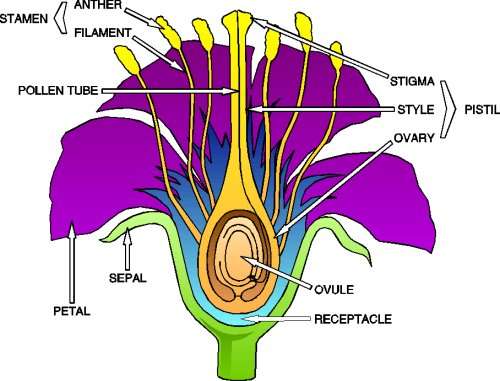
Now, with the help of my computer screen, a lot of searches from google and my friend Anick's vegetable garden, I created several video pieces on the life cycle of a plant and parts of a flower. My first problem was getting the audio to work (naughty, naughty finger). My second problem was keeping the camera stable. After many tries, I was finally able to more or less control the excess jumping around and the clarity of the picture. I even found a Spanish drawing to go with the English for the flower. I was not able to zoom in as much as I would have liked for the sample part in Anick's garden, but I wanted so much to use the tomato plant as an example.
I also made a video of the tomato plants' flowers in Anick's vegetable garden to show a real life example.
I was unable to upload the video (too large) on the plant life cycle/flower parts on WiFi. Still trying with cable.
www.youtube.com/user/frasianlat/
Like PowerPoint presentations, there is software to add sound and music to the video. It is nice to have this the ability to do so for free.
The possibilities of podcasts and vidcasts and storybook are awesome. Given the time and imagination, they would certainly enhance and give us another option when creating a lesson. I must recognize that there is a lot of thinking and trial and error to see what works and what doesn't. And, of course, can't forget time.
for video-google sources: http://www.norman.k12.ok.us/092/techscope/Image15.gif
http://www.prairiefrontier.com/pages/families/flwrparts.jpg
http://www.juntadeandalucia.es/averroes/concurso2004/ver/09/partes.gif
The problem came up in uploading the video to a site. There was information for podcasts, but not much, if at all, on vidcast. I looked at the podcasts sites and the storybook. I did some investigating, including reading other bloggers experiences. Then I happened on the comment from Ka-blog. I tried Teacher Tube and Youtube, but kept getting logged off their sites. This was while in France on WiFi. I thought, surely it must be the connection. Couldn't wait to get back to Houston to verify it. But in Houston, I kept having a similar problem timing out. I disabled the screen protector and was able to upload but they uploads took a very long time. This was with DSL. Tried it with cable connection, and it was a lot faster and no timing out.
Now, with the help of my computer screen, a lot of searches from google and my friend Anick's vegetable garden, I created several video pieces on the life cycle of a plant and parts of a flower. My first problem was getting the audio to work (naughty, naughty finger). My second problem was keeping the camera stable. After many tries, I was finally able to more or less control the excess jumping around and the clarity of the picture. I even found a Spanish drawing to go with the English for the flower. I was not able to zoom in as much as I would have liked for the sample part in Anick's garden, but I wanted so much to use the tomato plant as an example.
I also made a video of the tomato plants' flowers in Anick's vegetable garden to show a real life example.
I was unable to upload the video (too large) on the plant life cycle/flower parts on WiFi. Still trying with cable.
www.youtube.com/user/frasianlat/
Like PowerPoint presentations, there is software to add sound and music to the video. It is nice to have this the ability to do so for free.
The possibilities of podcasts and vidcasts and storybook are awesome. Given the time and imagination, they would certainly enhance and give us another option when creating a lesson. I must recognize that there is a lot of thinking and trial and error to see what works and what doesn't. And, of course, can't forget time.
for video-google sources: http://www.norman.k12.ok.us/092/techscope/Image15.gif
http://www.prairiefrontier.com/pages/families/flwrparts.jpg
http://www.juntadeandalucia.es/averroes/concurso2004/ver/09/partes.gif
Wednesday, July 2, 2008
Thing # 20 - Embedding Videos
I spent over 2 days trying to follow what seemed like simple instructions to embed a video. I thought perhaps I was missing something, so I kept coming back to section 20 and rereading and re-watching the videos. How was it that I couldn't get passed the simple download instructions? I couldn't find the option in the videos that I selected in YouTube. So I decided to get into TeacherTube. Good! I found the download option and I clicked on the link for the title. Wait a minute, all it does is replay the video. What is going on? Third day and I am near tears. What am I not seeing? I am about to throw in the towel. Wait, it is 11:25 p.m. and I am going to just pick the first video that comes up. Yes! It worked. This one got passed the download and the file conversion in Zamzar. But...after successful completion of file conversion, Zamzar says it will get the file ready and email it to me as soon as it is done. Checked email, but nothing. It also says it will hold the job for 24 hours after emailing it. Did take a little to get it, but it finally arrived. Download was very slow... source: YouTube
The longer the video presentation, the longer the file download. I found a very short one (1 minute one) for perimeter and it went much faster. Source: TeacherTube
The longer the video presentation, the longer the file download. I found a very short one (1 minute one) for perimeter and it went much faster. Source: TeacherTube
Monday, June 30, 2008
Thing # 19 - Web 2.0 Awards List
I thought first I would review the SpanishPod to see what it was like. Not bad for an online option. Some information is too skimpy and too informal. It does offer dialogue, exercises, some cultural issues, false cognates and more. I still prefer attending a class like for French, the Alliance Francais.
For books, I was disappointed that the following did not make it. My daughter thinks it is a very good site.
http://www.gutenberg.org/wiki/Main_Page
This is what she wrote me, "The goal of project Gutenberg is to make available all books that haveentered the public domain. The start of the project was typing in theUS Declaration of Independence, and now includes such works as Beowulf, Jane Austen's Pride and Prejudice, Mark Twain, Jane Eyre,Oscar Wilde, Grimm's fairy tales, The Count of Monte Christo, and non-fiction works including Charles Darwin and Einstein. They are also working on archiving works in languages besides English, andarchiving video and sounds files.
Instead of SpanishPod, I have decided to revisit Picasa to check some of their "new" (to me) features. I created a slideshow of some of my favorite vacation pictures to imbed here. Some of it reminds me of the year we watched Lance Armstrong win his last Tour de France and then retire.
I like the many features Picasa offers. If I had all the time in the world, I would spend days becoming an expert Picasa user. I like the feature of saving to the web and creating a link for friends to view. Makes a much smaller email.
Other features?
-- Slideshows and movies
-- Star picture for visual stand out
-- Keep one picture in multiple albums
-- Add password to any Picasa collection
-- Edit
..crop, remove red eye, fix contrast & color, enhance digital picture,
..Go sepia, black&white or color, zoom & move focus, share (resize & attach),
-- post slideshow to own blog or multiple photos,
-- works with newest compact flash devices,
-- print at home or from an online company, burn CD/DVD for archive,
-- turn photos into movie clips,
-- make personalized desktop picture or screensave or screensaver rotation,
-- create a poster
-- make collages
I can see the students chronicling steps in a science experiment with pictures and then posting it in our class blog. This would make for a great project and many learning styles (visual, tactile, written....) and the incorporating of technology in our class material.
For books, I was disappointed that the following did not make it. My daughter thinks it is a very good site.
http://www.gutenberg.org/wiki/Main_Page
This is what she wrote me, "The goal of project Gutenberg is to make available all books that haveentered the public domain. The start of the project was typing in theUS Declaration of Independence, and now includes such works as Beowulf, Jane Austen's Pride and Prejudice, Mark Twain, Jane Eyre,Oscar Wilde, Grimm's fairy tales, The Count of Monte Christo, and non-fiction works including Charles Darwin and Einstein. They are also working on archiving works in languages besides English, andarchiving video and sounds files.
Instead of SpanishPod, I have decided to revisit Picasa to check some of their "new" (to me) features. I created a slideshow of some of my favorite vacation pictures to imbed here. Some of it reminds me of the year we watched Lance Armstrong win his last Tour de France and then retire.
I like the many features Picasa offers. If I had all the time in the world, I would spend days becoming an expert Picasa user. I like the feature of saving to the web and creating a link for friends to view. Makes a much smaller email.
Other features?
-- Slideshows and movies
-- Star picture for visual stand out
-- Keep one picture in multiple albums
-- Add password to any Picasa collection
-- Edit
..crop, remove red eye, fix contrast & color, enhance digital picture,
..Go sepia, black&white or color, zoom & move focus, share (resize & attach),
-- post slideshow to own blog or multiple photos,
-- works with newest compact flash devices,
-- print at home or from an online company, burn CD/DVD for archive,
-- turn photos into movie clips,
-- make personalized desktop picture or screensave or screensaver rotation,
-- create a poster
-- make collages
I can see the students chronicling steps in a science experiment with pictures and then posting it in our class blog. This would make for a great project and many learning styles (visual, tactile, written....) and the incorporating of technology in our class material.
Sunday, June 29, 2008
Thing # 18 - Online Productivity Tools
Word, Power Point, Excel from Microsoft are all good tools. Like any tool, it takes time and practice to get used to the way things are done. It is frustrating not remembering how to do something you have done in the past because you don't do it often enough. This is how it is with any application. Since the Microsoft suite is not free, one is looking at spending close to a couple of hundred dollars for each one application. Just checked at http://www.newegg.com/Product/ProductList.aspx?Submit=ENE&DEPA=0&Description=office&x=0&y=0
I am pretty much a Microsoft Office person and like creatures of habit, will probably continue to use it. It is the software installed in the district computers. My daughter, however, is constantly evaluating and experimenting with what is out there. As a computer engineer, she has a very inquisitive and open mind. She shared some of her insights for Open Office and Google Docs with me. So I am also sharing the information here.
Note that I was unable to download the free tools under my id. Don't know if it is already part of our software package, but do not want to take the chance of intalling under admn id like I did with GoogleEarth, then found it in web apps, deinstalled the downloaded version and lost both.
The greatest advantage of Open Office is that it is free. A disadvantage is that most everyone in the corporate environment is probably using and saving their documents as Microsoft type files. But this is not a great problem as Open Office provides the ability to save them as Microsoft files. Even users of the MS software encounter inability to open and read documents from other people with an older version. It happens to my husband when his college students turn in reports and he has to request they resend them as .rtf. Also, one would have to get used to different menus and names for some things, but pretty much everything one can do in Microsoft Office can be done in open office.
Google Docs does not have as many features as Open Office or MicrosoftOffice, but the features it has are probably all that is needed by 95%of the population. Additionally, because it is online you can access it from anywhere you have an internet connection. If you know you won't have an internet connection where you are going, you can download the file to your computer and take it with you. If you need to make a power point presentation but the computer you're using doesn't have the correct software installed on it, as long as you havea web browser you can still show your presentation. Additionally, if you have a document that multiple people need to work on, the web-based nature of it allows for easy collaboration. Much like Open Office, Google Docs is constantly evolving, adding new features, and completely free. Disadvantages of Google Docs? Some people are concerned about privacy. Your document is stored on Google's servers and presumably some stranger could figure out your password or hack the system and delete all your stuff or (if you keep sensitive information out there) steal your stuff. Don't put sensitive information out there and keep back ups on your computer if it is something you don't want to lose.
I am pretty much a Microsoft Office person and like creatures of habit, will probably continue to use it. It is the software installed in the district computers. My daughter, however, is constantly evaluating and experimenting with what is out there. As a computer engineer, she has a very inquisitive and open mind. She shared some of her insights for Open Office and Google Docs with me. So I am also sharing the information here.
Note that I was unable to download the free tools under my id. Don't know if it is already part of our software package, but do not want to take the chance of intalling under admn id like I did with GoogleEarth, then found it in web apps, deinstalled the downloaded version and lost both.
The greatest advantage of Open Office is that it is free. A disadvantage is that most everyone in the corporate environment is probably using and saving their documents as Microsoft type files. But this is not a great problem as Open Office provides the ability to save them as Microsoft files. Even users of the MS software encounter inability to open and read documents from other people with an older version. It happens to my husband when his college students turn in reports and he has to request they resend them as .rtf. Also, one would have to get used to different menus and names for some things, but pretty much everything one can do in Microsoft Office can be done in open office.
Google Docs does not have as many features as Open Office or MicrosoftOffice, but the features it has are probably all that is needed by 95%of the population. Additionally, because it is online you can access it from anywhere you have an internet connection. If you know you won't have an internet connection where you are going, you can download the file to your computer and take it with you. If you need to make a power point presentation but the computer you're using doesn't have the correct software installed on it, as long as you havea web browser you can still show your presentation. Additionally, if you have a document that multiple people need to work on, the web-based nature of it allows for easy collaboration. Much like Open Office, Google Docs is constantly evolving, adding new features, and completely free. Disadvantages of Google Docs? Some people are concerned about privacy. Your document is stored on Google's servers and presumably some stranger could figure out your password or hack the system and delete all your stuff or (if you keep sensitive information out there) steal your stuff. Don't put sensitive information out there and keep back ups on your computer if it is something you don't want to lose.
Subscribe to:
Posts (Atom)