When I attended the i-pod class from the district, we ran into several glitches that were time-consuming. Updating to the new i-tune version took forever. Then some computers had additional issues. Downloading the apps wasn't quick either. Like any type of technology, time and version upgrades were also factors. In the SBISD apps list, I found information that was already not valid, like a youtube that had already been removed by the user. It was not easy (not obvious to me), to replace my old i-tunes icon on the computer for the new one. But I got through it although it took time (again, my two left feet). The classroom is not immune to these unforseen down times.
Favorite tools: I liked Wordle and digital story. I think I would use both for students to work on habitats. Wordle to create a list of vocabulary words and a digital story to show their understanding of a specific habitat including flora, fauna and the climactic conditions that make the combination possible.
Transfomed thinking about the learning that will take place in your classroom:
Technology is an instrument for apps that we use in our daily lives for work or for personal use. Issues like battery life, internet access, viruses, response time, compatibility between versions upgrades and prior versions, slow response time, time out, error conditions, they are all glitches that we have to live with. It can easily frustrate the newbie. It is the cost of technology. Yes, we will have times when it won't be available for one reason or another, but there will be many more times when things will run smoothly and it will save us time through the use of a different learning modality.
For instance, when someone thinks understanding of an app has set in, a revised version without the look and feel of the old one appears. The floppy disks, the diskettes, the large, bulky computers are all history. Digital has replaced analog. Digital has replaced traditional film negatives. And we continue to evolve and adapt as we have done over the centuries. This is an important message for our students. Exposing them to the i-pod/i-pad/Apple and the Dell laptops is no longer a nice to do, but a must do.
Unexpected outcomes from this program:
While working on the individual items, I kept being remined of the article "The Most Daring Education Reform of All" (Diana Senechal, Spring 2010 issue - American Educator) which covered in depth and found it very enlightening. The author warns against the danger of throwing out the old to replace it with the new, "While some of these ideas, taken in moderation, have the potential to enhance a curriculum, reformers have often carried them to extremes, forsaking intellectual study in the name of 'real life'."
As teachers, it is our responsibility to develop many skills like the ones in 11Tools while continuing to develop problem solving, task analysis, evaluating and sythesizing skills. Over the decades, there have been several movements to transform education. We are currently going through the 21st century movement driven in great part by the advancement in technology. But it is up to the teachers in the classrooms to assess the need for technology as opposed to paper/pencil/brain work in a given subject/assignment.
In some cases, the technology is an integral part, and in others, it may be a distractor. It is not an easy task to discern sometimes what to choose. When all is said and done, it boils down to being able to create a in an informed manner. It will take time, but I think it can and needs to be done. Just like applications we learned a year, two years, a decade ago and are now obsolete, the same will be experienced by todays' students. The important skill here is getting them used to the ever changing environment (technology and otherwise) and creating a thinking population that can take what they learned and extrapolate from it into the new. The key is not quantity, but quality and depth of teaching. Technology is here to stay and will either help or hinder any learning, depending on how it is used.
Friday, July 2, 2010

Wednesday, June 30, 2010
"11 Tools" Post #11 - digital citizenship
When using any type of technology, students need to be aware of certain rules and procedures to follow.
1. The most important one for me to convey to students would be, as would be for anything else including supplies and textbooks, respect for the equipment. Treat the equipment carefully as if it was your own. Return it to the place where you got it from and make sure you place it exactly the way you found it. I would have the students share times when someone took something of theirs and returned it broken or lost it. How did they feel about it? I would ask questions like, how much do you think this cost to replace? Do you think it could be replaced if there was no more money? Who would it end up affecting? I would have them put together a rule that they think they can live with to insure the equipment is used carefully.
2. Information posted may not always be accurate or true. I would ask students for ways to check out their source. (Look at more than one source. Compare to published information if needed.) Why is this important? To be able to make informed decisions. I
3. Be authentic. Like any written form, it is OK to read and learn from it and even model the style. Great artists modelled each other (the modernists, the cubists, etc.), but do not copy verbatim other people's work. You can paraphrase or quote. But copying and taking credit for others work is not only plagiarism, it is lso illegal. I will ask them what they think could happen to them and how do people find out if they did plagiarize. They will become aware that there are apps to detect plagiarism and laws in place.
1. The most important one for me to convey to students would be, as would be for anything else including supplies and textbooks, respect for the equipment. Treat the equipment carefully as if it was your own. Return it to the place where you got it from and make sure you place it exactly the way you found it. I would have the students share times when someone took something of theirs and returned it broken or lost it. How did they feel about it? I would ask questions like, how much do you think this cost to replace? Do you think it could be replaced if there was no more money? Who would it end up affecting? I would have them put together a rule that they think they can live with to insure the equipment is used carefully.
2. Information posted may not always be accurate or true. I would ask students for ways to check out their source. (Look at more than one source. Compare to published information if needed.) Why is this important? To be able to make informed decisions. I
3. Be authentic. Like any written form, it is OK to read and learn from it and even model the style. Great artists modelled each other (the modernists, the cubists, etc.), but do not copy verbatim other people's work. You can paraphrase or quote. But copying and taking credit for others work is not only plagiarism, it is lso illegal. I will ask them what they think could happen to them and how do people find out if they did plagiarize. They will become aware that there are apps to detect plagiarism and laws in place.
And I have one more item that I feel is necessary to discuss with the students.
4. Safety. Be careful what you post. Be careful who you grant access to your information. It is important how you word what you write. Good manners are important no matter what the media. I would elicit examples from students of what they would think would be inapropriate to post for public access and what are the dangers they see. We would then create a chart so that they are constantly reminded of what is and what is not appropriate and the reasoning behind.
"11 Tools" Post #10
I attended a district session on i-pods conducted an Apple rep. I enjoyed downloading an app for a museum site that offered many printable forms and information about course material. The map and weather apps are also very neat. I typed in our school address and used my fingertips to zoom in and zoom out. For weather, I checked out the current weather in Bordeaux, France and in Panama, Rep. of Panama. I can see students tying in temperature in different cities/countries to their location on earth (latitute and longitude). The i-pod is much smaller than a laptop and fits easily in the student's palm. Fingertip versus keyboard. Mmmmm.
One app I found would serve the students well for vocabulary and spelling, was Hangman. I liked the comments I read on this app.
The email app is a nice feature. I was wowed by the ease of use, zooming in and out on a friend's one. If extensive text is not going to be written, it would definitely be a very good app. I checked out a few comments by users. I found they mostly use i-pods for mail, music, and games. But then, games can have an educational objective tied to them. My son uses his mostly for music and prefers his laptop for other applications. Must be because of the size of the screen.
In the classroom I would include apps in social studies (states and capitals, identifying landforms), math (working with shapes, apps for specific skills like addition, subtraction) and grammar constructs (identifying certain parts of speech, and access/reading of good writing). I can see all kinds of special ed uses, especially with pictures and menu screens.
Possible issues I would have with the use of technology would be the easy way students can cut and copy information (plagiarizing), the ability of the i-pod to only display on the projector movies and slideshows, and the current inability to project the i-pod screen itself to show the navigation process.
One app I found would serve the students well for vocabulary and spelling, was Hangman. I liked the comments I read on this app.
The email app is a nice feature. I was wowed by the ease of use, zooming in and out on a friend's one. If extensive text is not going to be written, it would definitely be a very good app. I checked out a few comments by users. I found they mostly use i-pods for mail, music, and games. But then, games can have an educational objective tied to them. My son uses his mostly for music and prefers his laptop for other applications. Must be because of the size of the screen.
In the classroom I would include apps in social studies (states and capitals, identifying landforms), math (working with shapes, apps for specific skills like addition, subtraction) and grammar constructs (identifying certain parts of speech, and access/reading of good writing). I can see all kinds of special ed uses, especially with pictures and menu screens.
Possible issues I would have with the use of technology would be the easy way students can cut and copy information (plagiarizing), the ability of the i-pod to only display on the projector movies and slideshows, and the current inability to project the i-pod screen itself to show the navigation process.
"11 Tools" Post #9 Jing & Skype
How the screencast could help students and how you might have students use Jing.
When I look at all the new and improved technology that is out there for free, I think back to The Jetsons and instant visual communication from the home and the car (skymobile). I wish the writers of that show had thought up some episodes inside the classroom. I think screencast is a very good tool to help students capture images to add to their work. It reminds me of the camera feature in ActivInspire. It surely beats printing out an image and then scanning it to a jpeg file to import into a document, very time-consuming steps that I had myself gone through in the past. So glad technology keeps improving.
Skype with students and sharing across the district, the state, the nation, or the world!
I believe that Skype can help students from different schools, districts, states, countries to communicate and share in their learning. My son is working on a project at the University of Texas retrofitting the telescope at the McDonald Observatory in West Texas, and he doesn't have to actually go to the site or be face to face for meetings. Technology makes this all possible.
My husband teaches a globalization class at the university level. This is an online class where a number of professors in different universities and different countries co-teach. The students are also from different universities in different countries. The course was created both in English and Spanish and there were students from 9 countries signed up spanning several time zones all the way to the Phillipines, Europe, North and South America. Videos were created, synchonous and asynchronous communication was included.
As the technology improves and the communication becomes more available, students will have the opportunity to engage in conversation, presentations, and research even outside of the classroom walls without leaving the classroom. This reminds me of the ad where students in Middle America teleconference with students in a classroom across the world. I can't even remember what the ad is about. I was in awe of how far technology has been able to take us.
Skype
I have watched my son communicate with a friend of his that was studying in Japan at least 3 or so years ago. It was real time and reminds me of the newest version of the i-phones that just came out. I think the only thing you have to be aware of is the lighting and the directionality of the camera. Having a headset was also important for clarity.
In the case of our students, I would like for them to be able to communicate through Skype with students of other countries to discuss things like specific types of habitats or fauna abroad. One issue to be considered is the other group's accessibility to the technology and internet availability.
When I look at all the new and improved technology that is out there for free, I think back to The Jetsons and instant visual communication from the home and the car (skymobile). I wish the writers of that show had thought up some episodes inside the classroom. I think screencast is a very good tool to help students capture images to add to their work. It reminds me of the camera feature in ActivInspire. It surely beats printing out an image and then scanning it to a jpeg file to import into a document, very time-consuming steps that I had myself gone through in the past. So glad technology keeps improving.
Skype with students and sharing across the district, the state, the nation, or the world!
I believe that Skype can help students from different schools, districts, states, countries to communicate and share in their learning. My son is working on a project at the University of Texas retrofitting the telescope at the McDonald Observatory in West Texas, and he doesn't have to actually go to the site or be face to face for meetings. Technology makes this all possible.
My husband teaches a globalization class at the university level. This is an online class where a number of professors in different universities and different countries co-teach. The students are also from different universities in different countries. The course was created both in English and Spanish and there were students from 9 countries signed up spanning several time zones all the way to the Phillipines, Europe, North and South America. Videos were created, synchonous and asynchronous communication was included.
As the technology improves and the communication becomes more available, students will have the opportunity to engage in conversation, presentations, and research even outside of the classroom walls without leaving the classroom. This reminds me of the ad where students in Middle America teleconference with students in a classroom across the world. I can't even remember what the ad is about. I was in awe of how far technology has been able to take us.
Skype
I have watched my son communicate with a friend of his that was studying in Japan at least 3 or so years ago. It was real time and reminds me of the newest version of the i-phones that just came out. I think the only thing you have to be aware of is the lighting and the directionality of the camera. Having a headset was also important for clarity.
In the case of our students, I would like for them to be able to communicate through Skype with students of other countries to discuss things like specific types of habitats or fauna abroad. One issue to be considered is the other group's accessibility to the technology and internet availability.
"11 Tools" Post #8
Videos can be used to introduce or summarize a concept in the classroom. It helps with visualization (tie words with pictures) and is one more learning modality for the student. Some students need to have more exposure from all angles to a concept in order to retain the information.
1. I chose this video in youtube because it addresses landforms at a higher vocabulary level in Spanish so that the students can be, if not necessarily remember verbatim, at least exposed. Over time, meaning should set in.
http://www.youtube.com/watch?v=Nwi8yTNHBW8
2. From Discovery Learning, this video about George Washington Carver reinforces the student's L2 vocabulalry. Mr. Carver is part of the list of famous people in the social studies curriculum. Through him, some facts about plants and soil rotation (science) is introduced as well as how peanut became another cash crop after cotton. While we study and discuss Mr. Carver in L1(Spanish) during social studies , the L2(English) vocabulary enrichment takes place during language arts. The study of this character is a criss-crosses severa subjects (social studies, science, and language arts).
http://player.discoveryeducation.com/index.cfm?guidAssetId=6482DF7C-3168-4F16-A55B-347E9DE4DC05&blnFromSearch=1&productcode=US
1. I chose this video in youtube because it addresses landforms at a higher vocabulary level in Spanish so that the students can be, if not necessarily remember verbatim, at least exposed. Over time, meaning should set in.
http://www.youtube.com/watch?v=Nwi8yTNHBW8
2. From Discovery Learning, this video about George Washington Carver reinforces the student's L2 vocabulalry. Mr. Carver is part of the list of famous people in the social studies curriculum. Through him, some facts about plants and soil rotation (science) is introduced as well as how peanut became another cash crop after cotton. While we study and discuss Mr. Carver in L1(Spanish) during social studies , the L2(English) vocabulary enrichment takes place during language arts. The study of this character is a criss-crosses severa subjects (social studies, science, and language arts).
http://player.discoveryeducation.com/index.cfm?guidAssetId=6482DF7C-3168-4F16-A55B-347E9DE4DC05&blnFromSearch=1&productcode=US
Tuesday, June 29, 2010
"11 Tools" Post # 7
PhotoStory video
I find that in third grade, the majority of my students are still listing of events when they write. Creating a digital photo story is a way for students to work on the different traits that make up a good story. They can start by working on sequencing events (beginning, middle, end). Then they can move on to other traits like voice, development of their ideas, fluency and conventions. This should get them past the point of just listing events in their writing.
I can see students using PhotoStory for personal narratives, field trips, and class projects on non-fiction material in science and social studies. A good example would be a biography of someone who contributed to our history like Helen Keller, Louis Pasteur, or George Washington Carver.
Teachers can use photo story to introduce a lesson or summarize a unit of study. (S)he can use a story to tie in to other subjects like math.
I like the built in functions for imbedding voice and music to the photo frames. It makes the pictures come to life.
I find that in third grade, the majority of my students are still listing of events when they write. Creating a digital photo story is a way for students to work on the different traits that make up a good story. They can start by working on sequencing events (beginning, middle, end). Then they can move on to other traits like voice, development of their ideas, fluency and conventions. This should get them past the point of just listing events in their writing.
I can see students using PhotoStory for personal narratives, field trips, and class projects on non-fiction material in science and social studies. A good example would be a biography of someone who contributed to our history like Helen Keller, Louis Pasteur, or George Washington Carver.
Teachers can use photo story to introduce a lesson or summarize a unit of study. (S)he can use a story to tie in to other subjects like math.
I like the built in functions for imbedding voice and music to the photo frames. It makes the pictures come to life.
Saturday, June 26, 2010
"11 Tools" Post #6 WIKIS
I like the idea of students using their wiki to increase their participation in language arts assignment especially in the area of editing and revision. I can see them reinforcing vocabulary as they continuously reenter their story to reread and add as a group. I find that students have issues with elaboration and fluency because they think they are done writing when they have finished the first draft. It is difficult to convince them that a piece of writing is never done; it can always be revised and made better. They want to move on to the next thing, whatever that might be. Sharing and editing each others work, will allow them to pull on higher level skills of synthesizing and evaluating their own work, the work of others, and their group work.
As an aside, when setting up a wiki or any other application, I see some issues that may affect a learner in the choice made. Each choice is programmed in a different manner. The look and feel on the screen is different. The steps and processes required for setting up secured fields, different levels of security access, valid users, protected sections, etc. differs from panel to panel. What seems to be clearly written to some, may not be to someone else, kind of like reading a foreign language. These differences may not be an issue for those who breath and speak GUI (grapical user interface), but for those who do not day in and day out do so, it can be overwhelming and very time-consuming. Let us not forget that there are more than 8 modalities of learning and learning many of these new applications are in the self-learn category. At times the interactivity is not very intuitive either.
Some sample wikis ideas for use in the classroom, by teacher, the team or the department:
For students, wikis like http://wedderburn-grade34.wikispaces.com/The+Ocean can be setup for them to show their research on different science topics or read up on it, or to link up with sites to practice certain skills like skip counting in math. Student work can be available for a larger audience.
Teachers can use or access wikis to track and get information on different library resources or access other links. Interactive and collaborative learning can be shared at the grade, department, or school level.
As an aside, when setting up a wiki or any other application, I see some issues that may affect a learner in the choice made. Each choice is programmed in a different manner. The look and feel on the screen is different. The steps and processes required for setting up secured fields, different levels of security access, valid users, protected sections, etc. differs from panel to panel. What seems to be clearly written to some, may not be to someone else, kind of like reading a foreign language. These differences may not be an issue for those who breath and speak GUI (grapical user interface), but for those who do not day in and day out do so, it can be overwhelming and very time-consuming. Let us not forget that there are more than 8 modalities of learning and learning many of these new applications are in the self-learn category. At times the interactivity is not very intuitive either.
Some sample wikis ideas for use in the classroom, by teacher, the team or the department:
For students, wikis like http://wedderburn-grade34.wikispaces.com/The+Ocean can be setup for them to show their research on different science topics or read up on it, or to link up with sites to practice certain skills like skip counting in math. Student work can be available for a larger audience.
Teachers can use or access wikis to track and get information on different library resources or access other links. Interactive and collaborative learning can be shared at the grade, department, or school level.
Monday, June 21, 2010
"11 Tools" #5 Tagging and bookmarking
This is a very helpful tool. I checked the videos for using Delicious and Diigo, and decided on Delicious. The videos made it seem very simple to setup and manage, although easier said than done. I guess it must be my two tech left feet I have. Nonetheless, I found my way around and setup two sites and bookmarked and tagged them. I can certainly see how this social bookmarking could benefit others within the network in order to share relevant, as well as new, information. It can make use of one's time more effectively as well as efficiently. Two websites I found interesting and useful for my teaching needs are:
http://www.tlsbooks.com/
http://www.amnh.org/nationalcenter/online_field_journal/
http://www.tlsbooks.com/
http://www.amnh.org/nationalcenter/online_field_journal/
For tags I used words like science, worksheets, museum. Students can use this resource to bookmark and tag interesting resources that addresses a classroom topic during their research. I see it being used by students cooperating in writing research papers, classroom discussions, etc. Teachers can use it to find and share resources or discussions.
Sunday, June 20, 2010
"11 Tools" Post # 4 Google Docs and Google Read
I am very interested in the google doc application for teacher documents so that we can divide out the work without so many copies floating around. It makes it much easier to read and edit when the changes go directly to the one and only copy. It also makes it easier for each teacher to work on his/her own portion and still see how it fits in the overall picture. I created and uploaded a spreadsheet for our lesson plan for the 1st week of class and shared it with two other colleagues for them to input a different section. That is definitely an improvement to having multiple copies of the same document. I can see students with their own google accounts, editing their group writeup working separately on their part but still together on the project. I like the google reader to follow blogs that are of interest to me without having to remember what the blogsite is or having to log on to the different sites. I have added my 5 blogs to follow.
The google reader is a very helpful tool to keep the sites we are interested all in one place. There is so much out there and it is just not possible to remember all the sites. But with the reader, a brief glance and you can easily find what you are looking for.
The google reader is a very helpful tool to keep the sites we are interested all in one place. There is so much out there and it is just not possible to remember all the sites. But with the reader, a brief glance and you can easily find what you are looking for.
"11 Tools" Post # 2
Building an online education community and participating in a PLN is a quick and easy way to exchange opinions in technology and see people's comments. There are far too many apps and it becomes difficult to decide which one is best for what we have in mind. They are constantly being recycled and changed. The current labor force has to work with computers and computer apps. To be able to facilitate and expose students to the various apps is important.
One of the concerns in posting comments is how we word our thoughts. Just like children were taught manners, the same applies to what we write when we comment on people's sites.
In choosing my 5 sites, I even ventured into the other schools and found very interesting insights from different teaching perspectives, for instance physical education. I liked reading what others are doing and sharing possible use for those apps. I finally picked the following ones: Online Gadgets, Rabbit Thoughts for 11 Tools, But It's Summer, and Hard at Work.
One of the concerns in posting comments is how we word our thoughts. Just like children were taught manners, the same applies to what we write when we comment on people's sites.
In choosing my 5 sites, I even ventured into the other schools and found very interesting insights from different teaching perspectives, for instance physical education. I liked reading what others are doing and sharing possible use for those apps. I finally picked the following ones: Online Gadgets, Rabbit Thoughts for 11 Tools, But It's Summer, and Hard at Work.
Saturday, June 19, 2010
"11 Tools" Post #3 Generators & Mashups
Image generators or mashups samples: Wordle and Bookr.
I like Wordl for students to create their own using the vocabulary in a unit of study in either science or social studies. I think the different patterns that can be generated will excite the kids and in the process help them build vocabulary. Goodbye to the old, boring spreadsheet!

After searching and picking the pictures in Bookr for my book, I got stuck pretty badly trying to figure out how to bring the pictures into my book. I tried different things from downloading the pictures to my desktop from entering my email and blog name to no avail. All for naught. Couldn't figure out how to get those *&((^%% pictures into my book. Had to go from the book page by tag (mountains, islands, etc) and pick from the limited thumbnail pictures flashing across as fast as Speedy Gonazalez, sometimes having nothing to do with the tag word. But, I did get the book done: "Accidentes Geográficos". I can already see the students looking for pictures to fit the description of their vocabulary word so that they can create their own book individually or in groups. I can see it being used in a project.
I like Wordl for students to create their own using the vocabulary in a unit of study in either science or social studies. I think the different patterns that can be generated will excite the kids and in the process help them build vocabulary. Goodbye to the old, boring spreadsheet!
After searching and picking the pictures in Bookr for my book, I got stuck pretty badly trying to figure out how to bring the pictures into my book. I tried different things from downloading the pictures to my desktop from entering my email and blog name to no avail. All for naught. Couldn't figure out how to get those *&((^%% pictures into my book. Had to go from the book page by tag (mountains, islands, etc) and pick from the limited thumbnail pictures flashing across as fast as Speedy Gonazalez, sometimes having nothing to do with the tag word. But, I did get the book done: "Accidentes Geográficos". I can already see the students looking for pictures to fit the description of their vocabulary word so that they can create their own book individually or in groups. I can see it being used in a project.
Monday, June 14, 2010
"11 Tools" Post # 1
At first I was nervous because it had been a while since I used my blog. Wasn't sure how much I had retained. Once I got over logging in and remembering/resetting my password, I was able to get into the blog and look at all the neat things I had posted. I thought the current avatar was great back when it was created. But once I created the VOKI and gave it voice, I prefered the new one. I tried to use the microphone option thinking that it would pick it up from the computer built-in mike (tiny whole on top of the turn on button), but it wouldn't let me. It did work for Jolynn in an advanced ActivInspire class I attended last week. So I gave up and used the text option instead. I am looking forward to learning more.
Monday, July 14, 2008
Thing # 23 - My thoughts
I enjoyed "playing" with the many pieces of technology in Library2Play. Some of them I was familiar with, others I had heard or seen others use, and some I didn't realize they even existed. My overall experience was good except for my moments of frustration, which were many. I would certainly recommend this course to anyone who wants an overview in the quiet and comfort of the home away from the everyday stresses of school.
Favorites: Avatar, Podcast/Vidcast, Library List, RSS, Making cards
Assistance/help in lifelong learning goals - the frustration and stress in some of the assignments led to reward and knowledge of products that may prove useful and interesting like the sharing of teacher blogs and making vidcasts. I can see students preparing material for a video (and learning in the process). I can see making cards for my rewards when using GLAD in my classroom.
Take-a-ways or unexpected outcomes - I found a lot of redundancy and choices. Some good, some not so good. For example, there are so many sites for blogging. One could spend all their time surfing the net to find bloggers they had afinity with. With the search engines, we can find information quickly, but we have to be cognizant of the sources as anybody can put stuff out there and some sources are more reliable than others.
Improvement in program's concept/format - I would have liked to see for each blog what entry they were at especially when I had a problem or concern that I needed to resolve. I know this cannot be changed as it is driven by the formula the blog has for retiring them.
I would like participating in another one of these courses depending on what was being covered, depth and my training priorities. Library2Play definitely encapsulated a good number of tools, blogs, sites, etc. in one place for discovery, learning more about, or simply for reinforcing prior knowledge of the technology that is now more the norm than the exception. Whether we want to or not, we will all have to hop onto the bandwagon. We just need to do it at the pace that is comfortable to each of us so that we are able to soak in as much as possible.
Thank you. Thank you. Thank you. Enjoyed myself.
Favorites: Avatar, Podcast/Vidcast, Library List, RSS, Making cards
Assistance/help in lifelong learning goals - the frustration and stress in some of the assignments led to reward and knowledge of products that may prove useful and interesting like the sharing of teacher blogs and making vidcasts. I can see students preparing material for a video (and learning in the process). I can see making cards for my rewards when using GLAD in my classroom.
Take-a-ways or unexpected outcomes - I found a lot of redundancy and choices. Some good, some not so good. For example, there are so many sites for blogging. One could spend all their time surfing the net to find bloggers they had afinity with. With the search engines, we can find information quickly, but we have to be cognizant of the sources as anybody can put stuff out there and some sources are more reliable than others.
Improvement in program's concept/format - I would have liked to see for each blog what entry they were at especially when I had a problem or concern that I needed to resolve. I know this cannot be changed as it is driven by the formula the blog has for retiring them.
I would like participating in another one of these courses depending on what was being covered, depth and my training priorities. Library2Play definitely encapsulated a good number of tools, blogs, sites, etc. in one place for discovery, learning more about, or simply for reinforcing prior knowledge of the technology that is now more the norm than the exception. Whether we want to or not, we will all have to hop onto the bandwagon. We just need to do it at the pace that is comfortable to each of us so that we are able to soak in as much as possible.
Thank you. Thank you. Thank you. Enjoyed myself.
Thing # 22 - Ning
Ning offers functionality and experiences that are comfortable with students. But so does MySpace and Facebook. I like how it hooks to other sites. Some of it is confusing to me.
With law enforcement programs where officers are constantly monitoring for children's safety and as a parent, I can see other parents' concerns of what their children are doing when online. I think all this technology is good as an add-on, but if it came down to chosing one or the other, I would have to go for the good old-fashioned book. I can flip back and forth, while it is very difficult to see more than one page (full page) at a time on the computer unless you have one of those fancy very large double screens. But then, techonology is evolving and prices are coming down.
With law enforcement programs where officers are constantly monitoring for children's safety and as a parent, I can see other parents' concerns of what their children are doing when online. I think all this technology is good as an add-on, but if it came down to chosing one or the other, I would have to go for the good old-fashioned book. I can flip back and forth, while it is very difficult to see more than one page (full page) at a time on the computer unless you have one of those fancy very large double screens. But then, techonology is evolving and prices are coming down.
I liked hooking up to sites through Teacher Ning site. I could easily access the alternative certification site, teacher blogs, add my blog if I wanted, and look at teaching tools for lessons and activities. As a teacher and an adult, I know that with the privileges of technology comes risks. We need to use the technology properly. I like the fact that Ning is commited to a best practices approach.
Thing # 21 - Podcasts/Vidcasts
This activity was a lot of fun. I made a number of videos trying to figure out what I wanted to show (teach). Since I was travelling in France, I thought maybe a lesson on French culture, or perhaps a "green" lesson since Angelina Jolie has chosen to move her family to the first BIO village in France, or perhaps a "how to" video. So many choices...tsk, tsk, tsk. I settled for something simple based on my friend's beautiful vegetable garden.
The problem came up in uploading the video to a site. There was information for podcasts, but not much, if at all, on vidcast. I looked at the podcasts sites and the storybook. I did some investigating, including reading other bloggers experiences. Then I happened on the comment from Ka-blog. I tried Teacher Tube and Youtube, but kept getting logged off their sites. This was while in France on WiFi. I thought, surely it must be the connection. Couldn't wait to get back to Houston to verify it. But in Houston, I kept having a similar problem timing out. I disabled the screen protector and was able to upload but they uploads took a very long time. This was with DSL. Tried it with cable connection, and it was a lot faster and no timing out.
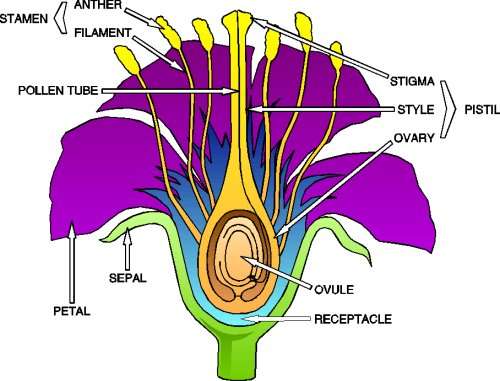
Now, with the help of my computer screen, a lot of searches from google and my friend Anick's vegetable garden, I created several video pieces on the life cycle of a plant and parts of a flower. My first problem was getting the audio to work (naughty, naughty finger). My second problem was keeping the camera stable. After many tries, I was finally able to more or less control the excess jumping around and the clarity of the picture. I even found a Spanish drawing to go with the English for the flower. I was not able to zoom in as much as I would have liked for the sample part in Anick's garden, but I wanted so much to use the tomato plant as an example.
I also made a video of the tomato plants' flowers in Anick's vegetable garden to show a real life example.
I was unable to upload the video (too large) on the plant life cycle/flower parts on WiFi. Still trying with cable.
www.youtube.com/user/frasianlat/
Like PowerPoint presentations, there is software to add sound and music to the video. It is nice to have this the ability to do so for free.
The possibilities of podcasts and vidcasts and storybook are awesome. Given the time and imagination, they would certainly enhance and give us another option when creating a lesson. I must recognize that there is a lot of thinking and trial and error to see what works and what doesn't. And, of course, can't forget time.
for video-google sources: http://www.norman.k12.ok.us/092/techscope/Image15.gif
http://www.prairiefrontier.com/pages/families/flwrparts.jpg
http://www.juntadeandalucia.es/averroes/concurso2004/ver/09/partes.gif
The problem came up in uploading the video to a site. There was information for podcasts, but not much, if at all, on vidcast. I looked at the podcasts sites and the storybook. I did some investigating, including reading other bloggers experiences. Then I happened on the comment from Ka-blog. I tried Teacher Tube and Youtube, but kept getting logged off their sites. This was while in France on WiFi. I thought, surely it must be the connection. Couldn't wait to get back to Houston to verify it. But in Houston, I kept having a similar problem timing out. I disabled the screen protector and was able to upload but they uploads took a very long time. This was with DSL. Tried it with cable connection, and it was a lot faster and no timing out.
Now, with the help of my computer screen, a lot of searches from google and my friend Anick's vegetable garden, I created several video pieces on the life cycle of a plant and parts of a flower. My first problem was getting the audio to work (naughty, naughty finger). My second problem was keeping the camera stable. After many tries, I was finally able to more or less control the excess jumping around and the clarity of the picture. I even found a Spanish drawing to go with the English for the flower. I was not able to zoom in as much as I would have liked for the sample part in Anick's garden, but I wanted so much to use the tomato plant as an example.
I also made a video of the tomato plants' flowers in Anick's vegetable garden to show a real life example.
I was unable to upload the video (too large) on the plant life cycle/flower parts on WiFi. Still trying with cable.
www.youtube.com/user/frasianlat/
Like PowerPoint presentations, there is software to add sound and music to the video. It is nice to have this the ability to do so for free.
The possibilities of podcasts and vidcasts and storybook are awesome. Given the time and imagination, they would certainly enhance and give us another option when creating a lesson. I must recognize that there is a lot of thinking and trial and error to see what works and what doesn't. And, of course, can't forget time.
for video-google sources: http://www.norman.k12.ok.us/092/techscope/Image15.gif
http://www.prairiefrontier.com/pages/families/flwrparts.jpg
http://www.juntadeandalucia.es/averroes/concurso2004/ver/09/partes.gif
Wednesday, July 2, 2008
Thing # 20 - Embedding Videos
I spent over 2 days trying to follow what seemed like simple instructions to embed a video. I thought perhaps I was missing something, so I kept coming back to section 20 and rereading and re-watching the videos. How was it that I couldn't get passed the simple download instructions? I couldn't find the option in the videos that I selected in YouTube. So I decided to get into TeacherTube. Good! I found the download option and I clicked on the link for the title. Wait a minute, all it does is replay the video. What is going on? Third day and I am near tears. What am I not seeing? I am about to throw in the towel. Wait, it is 11:25 p.m. and I am going to just pick the first video that comes up. Yes! It worked. This one got passed the download and the file conversion in Zamzar. But...after successful completion of file conversion, Zamzar says it will get the file ready and email it to me as soon as it is done. Checked email, but nothing. It also says it will hold the job for 24 hours after emailing it. Did take a little to get it, but it finally arrived. Download was very slow... source: YouTube
The longer the video presentation, the longer the file download. I found a very short one (1 minute one) for perimeter and it went much faster. Source: TeacherTube
The longer the video presentation, the longer the file download. I found a very short one (1 minute one) for perimeter and it went much faster. Source: TeacherTube
Monday, June 30, 2008
Thing # 19 - Web 2.0 Awards List
I thought first I would review the SpanishPod to see what it was like. Not bad for an online option. Some information is too skimpy and too informal. It does offer dialogue, exercises, some cultural issues, false cognates and more. I still prefer attending a class like for French, the Alliance Francais.
For books, I was disappointed that the following did not make it. My daughter thinks it is a very good site.
http://www.gutenberg.org/wiki/Main_Page
This is what she wrote me, "The goal of project Gutenberg is to make available all books that haveentered the public domain. The start of the project was typing in theUS Declaration of Independence, and now includes such works as Beowulf, Jane Austen's Pride and Prejudice, Mark Twain, Jane Eyre,Oscar Wilde, Grimm's fairy tales, The Count of Monte Christo, and non-fiction works including Charles Darwin and Einstein. They are also working on archiving works in languages besides English, andarchiving video and sounds files.
Instead of SpanishPod, I have decided to revisit Picasa to check some of their "new" (to me) features. I created a slideshow of some of my favorite vacation pictures to imbed here. Some of it reminds me of the year we watched Lance Armstrong win his last Tour de France and then retire.
I like the many features Picasa offers. If I had all the time in the world, I would spend days becoming an expert Picasa user. I like the feature of saving to the web and creating a link for friends to view. Makes a much smaller email.
Other features?
-- Slideshows and movies
-- Star picture for visual stand out
-- Keep one picture in multiple albums
-- Add password to any Picasa collection
-- Edit
..crop, remove red eye, fix contrast & color, enhance digital picture,
..Go sepia, black&white or color, zoom & move focus, share (resize & attach),
-- post slideshow to own blog or multiple photos,
-- works with newest compact flash devices,
-- print at home or from an online company, burn CD/DVD for archive,
-- turn photos into movie clips,
-- make personalized desktop picture or screensave or screensaver rotation,
-- create a poster
-- make collages
I can see the students chronicling steps in a science experiment with pictures and then posting it in our class blog. This would make for a great project and many learning styles (visual, tactile, written....) and the incorporating of technology in our class material.
For books, I was disappointed that the following did not make it. My daughter thinks it is a very good site.
http://www.gutenberg.org/wiki/Main_Page
This is what she wrote me, "The goal of project Gutenberg is to make available all books that haveentered the public domain. The start of the project was typing in theUS Declaration of Independence, and now includes such works as Beowulf, Jane Austen's Pride and Prejudice, Mark Twain, Jane Eyre,Oscar Wilde, Grimm's fairy tales, The Count of Monte Christo, and non-fiction works including Charles Darwin and Einstein. They are also working on archiving works in languages besides English, andarchiving video and sounds files.
Instead of SpanishPod, I have decided to revisit Picasa to check some of their "new" (to me) features. I created a slideshow of some of my favorite vacation pictures to imbed here. Some of it reminds me of the year we watched Lance Armstrong win his last Tour de France and then retire.
I like the many features Picasa offers. If I had all the time in the world, I would spend days becoming an expert Picasa user. I like the feature of saving to the web and creating a link for friends to view. Makes a much smaller email.
Other features?
-- Slideshows and movies
-- Star picture for visual stand out
-- Keep one picture in multiple albums
-- Add password to any Picasa collection
-- Edit
..crop, remove red eye, fix contrast & color, enhance digital picture,
..Go sepia, black&white or color, zoom & move focus, share (resize & attach),
-- post slideshow to own blog or multiple photos,
-- works with newest compact flash devices,
-- print at home or from an online company, burn CD/DVD for archive,
-- turn photos into movie clips,
-- make personalized desktop picture or screensave or screensaver rotation,
-- create a poster
-- make collages
I can see the students chronicling steps in a science experiment with pictures and then posting it in our class blog. This would make for a great project and many learning styles (visual, tactile, written....) and the incorporating of technology in our class material.
Sunday, June 29, 2008
Thing # 18 - Online Productivity Tools
Word, Power Point, Excel from Microsoft are all good tools. Like any tool, it takes time and practice to get used to the way things are done. It is frustrating not remembering how to do something you have done in the past because you don't do it often enough. This is how it is with any application. Since the Microsoft suite is not free, one is looking at spending close to a couple of hundred dollars for each one application. Just checked at http://www.newegg.com/Product/ProductList.aspx?Submit=ENE&DEPA=0&Description=office&x=0&y=0
I am pretty much a Microsoft Office person and like creatures of habit, will probably continue to use it. It is the software installed in the district computers. My daughter, however, is constantly evaluating and experimenting with what is out there. As a computer engineer, she has a very inquisitive and open mind. She shared some of her insights for Open Office and Google Docs with me. So I am also sharing the information here.
Note that I was unable to download the free tools under my id. Don't know if it is already part of our software package, but do not want to take the chance of intalling under admn id like I did with GoogleEarth, then found it in web apps, deinstalled the downloaded version and lost both.
The greatest advantage of Open Office is that it is free. A disadvantage is that most everyone in the corporate environment is probably using and saving their documents as Microsoft type files. But this is not a great problem as Open Office provides the ability to save them as Microsoft files. Even users of the MS software encounter inability to open and read documents from other people with an older version. It happens to my husband when his college students turn in reports and he has to request they resend them as .rtf. Also, one would have to get used to different menus and names for some things, but pretty much everything one can do in Microsoft Office can be done in open office.
Google Docs does not have as many features as Open Office or MicrosoftOffice, but the features it has are probably all that is needed by 95%of the population. Additionally, because it is online you can access it from anywhere you have an internet connection. If you know you won't have an internet connection where you are going, you can download the file to your computer and take it with you. If you need to make a power point presentation but the computer you're using doesn't have the correct software installed on it, as long as you havea web browser you can still show your presentation. Additionally, if you have a document that multiple people need to work on, the web-based nature of it allows for easy collaboration. Much like Open Office, Google Docs is constantly evolving, adding new features, and completely free. Disadvantages of Google Docs? Some people are concerned about privacy. Your document is stored on Google's servers and presumably some stranger could figure out your password or hack the system and delete all your stuff or (if you keep sensitive information out there) steal your stuff. Don't put sensitive information out there and keep back ups on your computer if it is something you don't want to lose.
I am pretty much a Microsoft Office person and like creatures of habit, will probably continue to use it. It is the software installed in the district computers. My daughter, however, is constantly evaluating and experimenting with what is out there. As a computer engineer, she has a very inquisitive and open mind. She shared some of her insights for Open Office and Google Docs with me. So I am also sharing the information here.
Note that I was unable to download the free tools under my id. Don't know if it is already part of our software package, but do not want to take the chance of intalling under admn id like I did with GoogleEarth, then found it in web apps, deinstalled the downloaded version and lost both.
The greatest advantage of Open Office is that it is free. A disadvantage is that most everyone in the corporate environment is probably using and saving their documents as Microsoft type files. But this is not a great problem as Open Office provides the ability to save them as Microsoft files. Even users of the MS software encounter inability to open and read documents from other people with an older version. It happens to my husband when his college students turn in reports and he has to request they resend them as .rtf. Also, one would have to get used to different menus and names for some things, but pretty much everything one can do in Microsoft Office can be done in open office.
Google Docs does not have as many features as Open Office or MicrosoftOffice, but the features it has are probably all that is needed by 95%of the population. Additionally, because it is online you can access it from anywhere you have an internet connection. If you know you won't have an internet connection where you are going, you can download the file to your computer and take it with you. If you need to make a power point presentation but the computer you're using doesn't have the correct software installed on it, as long as you havea web browser you can still show your presentation. Additionally, if you have a document that multiple people need to work on, the web-based nature of it allows for easy collaboration. Much like Open Office, Google Docs is constantly evolving, adding new features, and completely free. Disadvantages of Google Docs? Some people are concerned about privacy. Your document is stored on Google's servers and presumably some stranger could figure out your password or hack the system and delete all your stuff or (if you keep sensitive information out there) steal your stuff. Don't put sensitive information out there and keep back ups on your computer if it is something you don't want to lose.
Thing # 17 - Rollyo

I found setting my searchroll quick and easy:
.
There are so many search engines and different ways to add and get to the url's. Again, my qualm is coming up with a descriptive enough title of 20 or less characters and then, remembering what I called it.
As a chocolate lover (dark chocolate), I thought it would be interesting to see what I would pull up. Will probably find this one in one of those yummy patisseries in France next week and more. mmmmmm....... :)
As a chocolate lover (dark chocolate), I thought it would be interesting to see what I would pull up. Will probably find this one in one of those yummy patisseries in France next week and more. mmmmmm....... :)
photo source: flicker naoko123
Subscribe to:
Posts (Atom)